
Fetan on your iPhone
iPhone does not let any app read SMS. So Fetan works a little differently here — a small Apple Shortcut passes your bank’s message to Fetan, and Fetan sends the payment alert to your cashier. You set it up once, in about five minutes.
Before you start
Open Fetan on Telegram and tap Set up on iPhone. Share your phone number, and the bot sends you two things:
- your Fetan key — tap it once to copy
- your setup link — open it on the iPhone that receives your bank SMS
Do everything below on that same iPhone.
Seven taps, once
Every screen below is exactly what you will see on your phone.
-
1
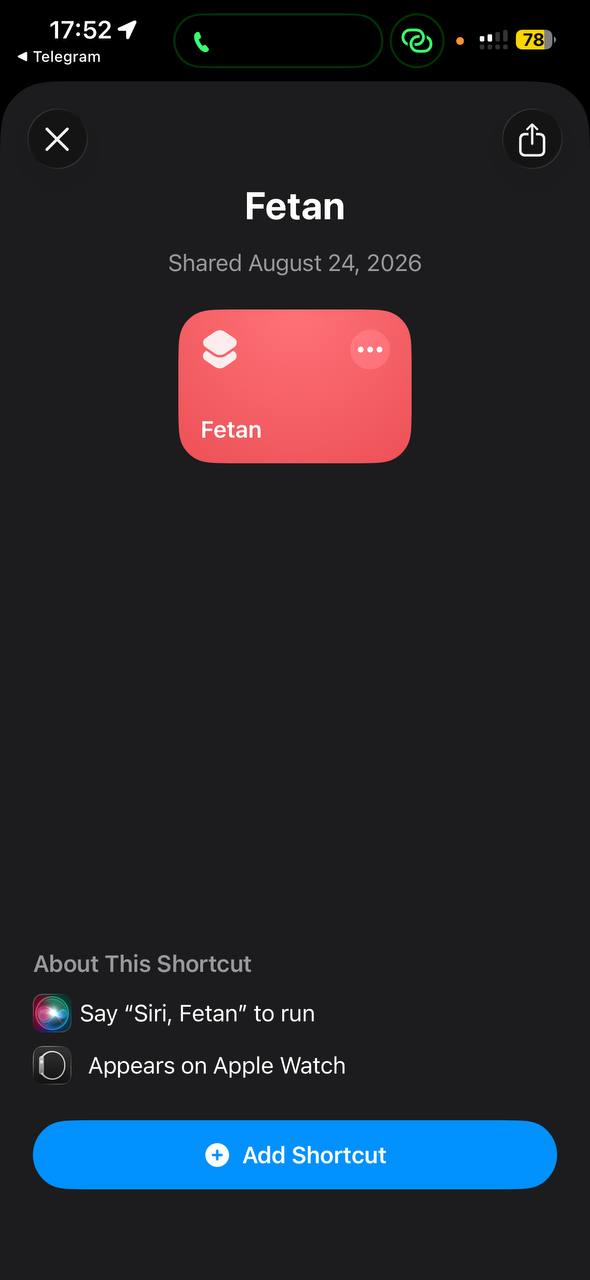
Add the Fetan Shortcut
Tap the button below on your iPhone, then tap the big blue Add Shortcut.
Your iPhone will ask for your Fetan key. Go to your Fetan chat on Telegram, tap the key to copy it, then paste it in.
Open this page on your iPhone for the button to work.
-
2
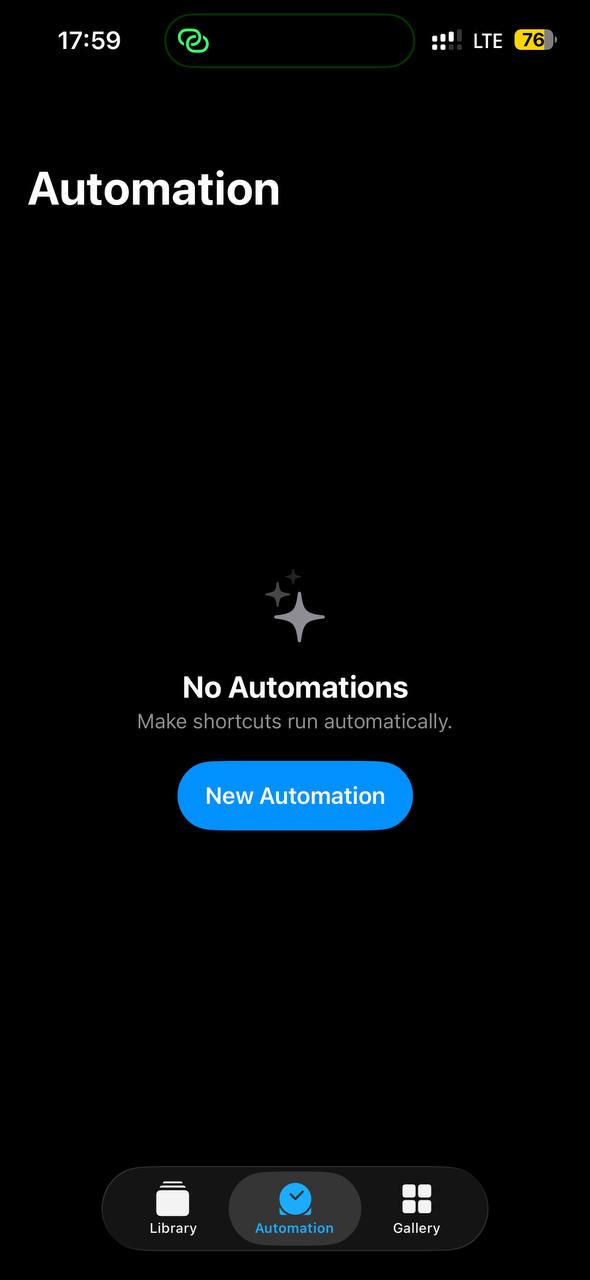
Open Automation
Open the Shortcuts app on your iPhone. Tap Automation at the bottom, then New Automation.
-
3
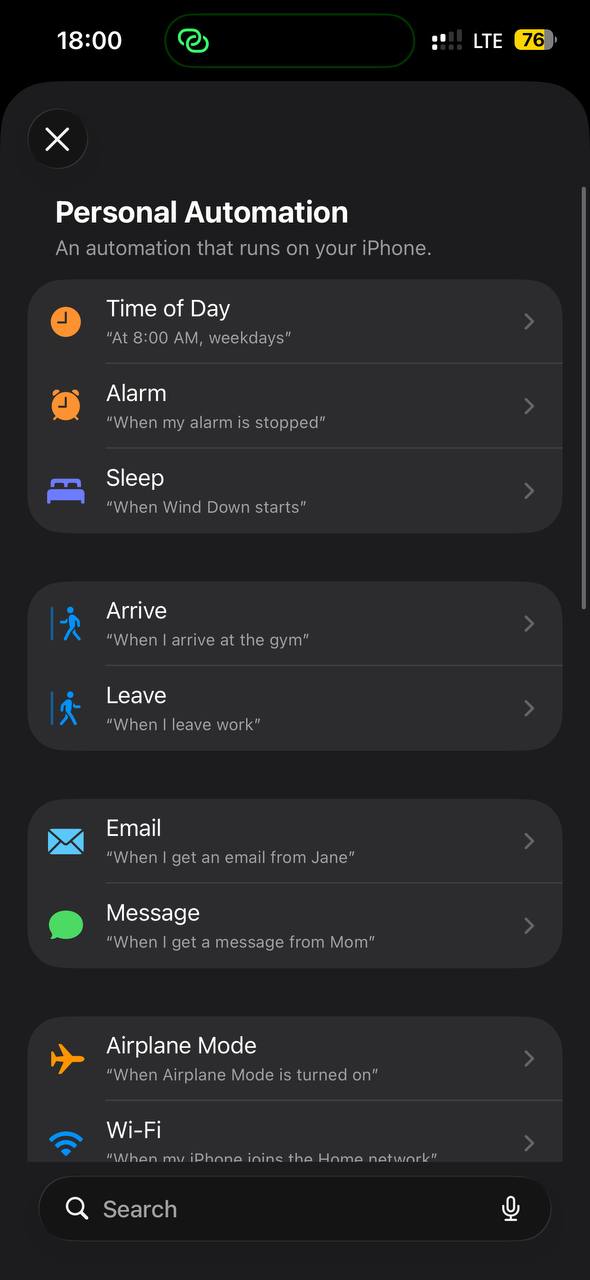
Choose “Message”
Scroll down the list and tap Message — the green speech bubble.
-
4
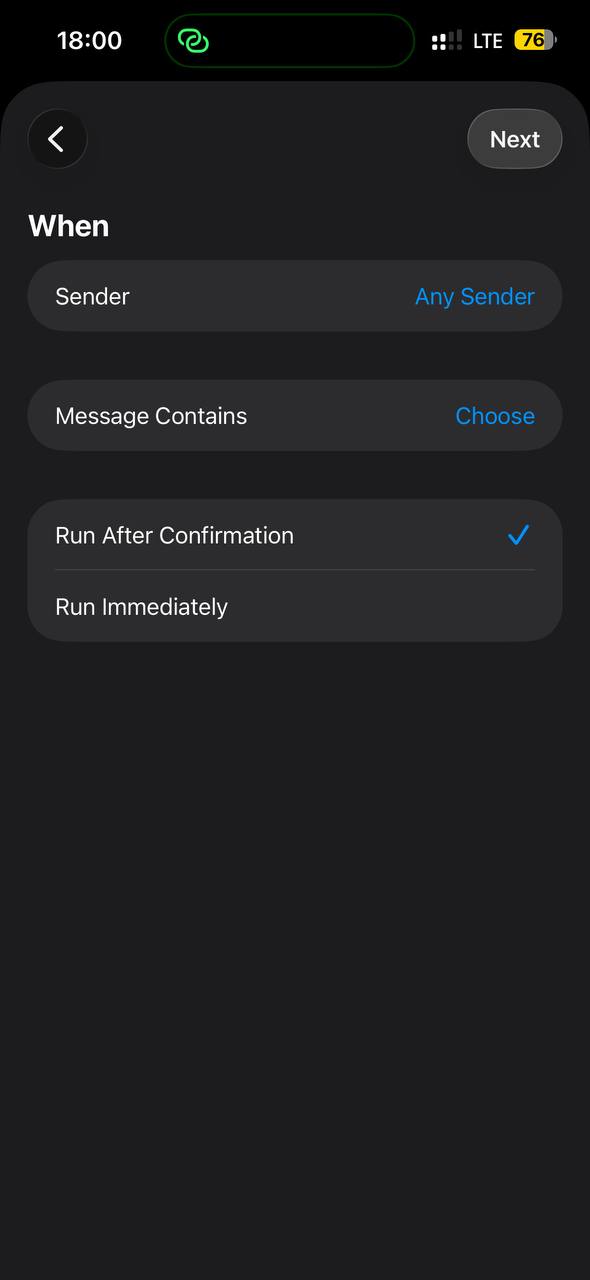
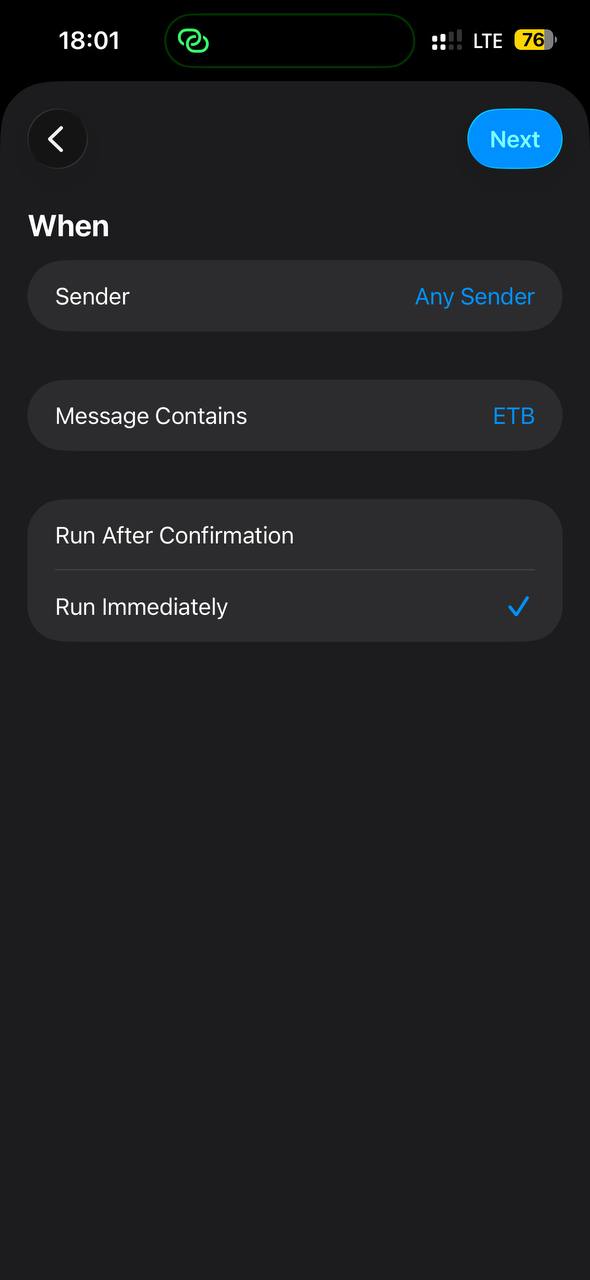
Type ETB and pick “Run Immediately”
Tap Choose next to Message Contains and type ETB.
Then tap Run Immediately. This one matters: if you leave Run After Confirmation, your phone will ask permission for every single payment.
Tap Next.
-
5
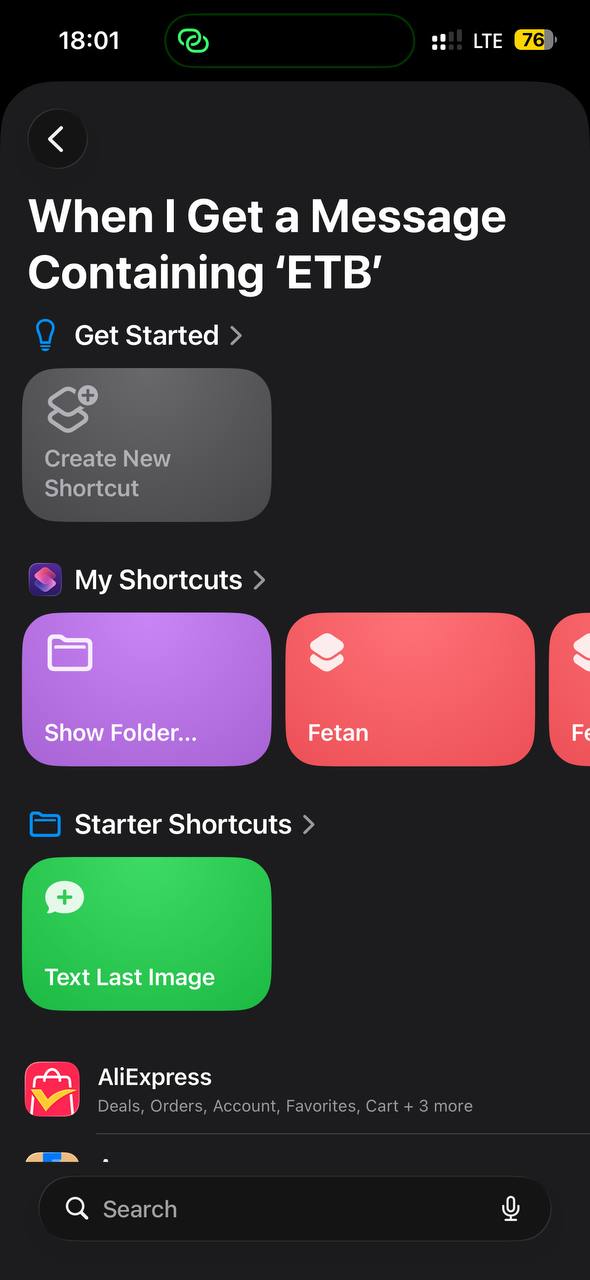
Pick Fetan
Under My Shortcuts, tap the red Fetan tile.
-
6
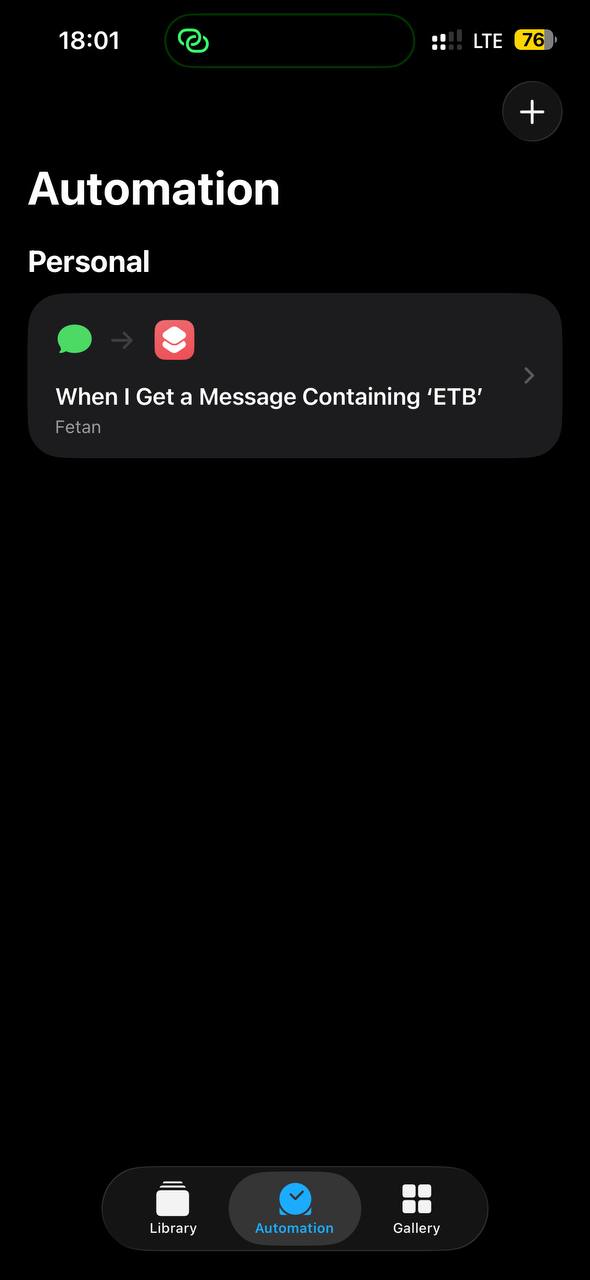
That’s the setup done
You should now see your automation listed: When I Get a Message Containing ‘ETB’.
-
7
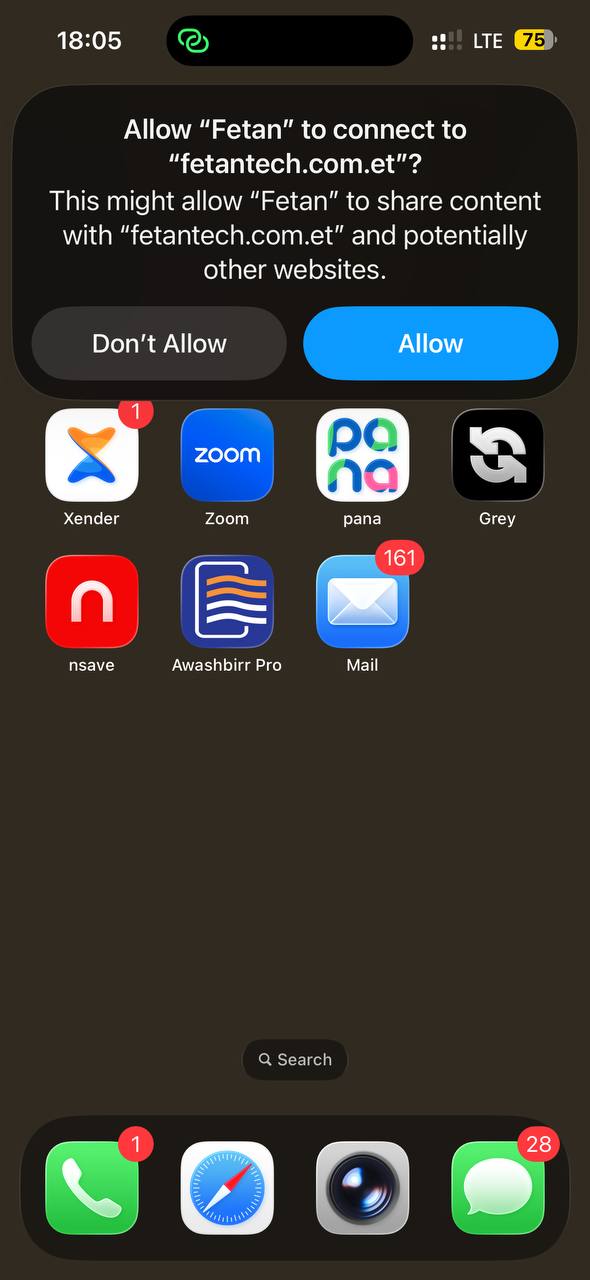
Tap Allow the first time
When your first payment arrives, your iPhone asks whether Fetan may connect to fetantech.com.et.
Tap Allow. It only asks once. If you tap Don’t Allow, no alerts will ever reach your cashier — and nothing will tell you why.
Now check it works
Ask someone to send you a small payment, or wait for your next one. Your cashier should get the alert within a few seconds.
Nothing arrived? Open Shortcuts › Automation and check the automation is still switched on.
If your phone showed “Automation failed” or “The request timed out”, it had no internet at that moment. Press and hold the bank’s message in Messages, tap Share, then Send to Fetan once you have signal again.
iPhone runs these automations when it can, not always instantly — so please check that your first few payments come through.
Common questions
Does Fetan read my personal messages?
No. The automation only wakes up for messages containing “ETB”, and the Shortcut then checks that the message names one of the banks Fetan supports. Anything else stops on your phone and is never sent.
Where do I get my Fetan key?
From the Fetan bot on Telegram. It is hidden after 15 minutes for safety — tap iPhone setup on the bot menu any time for a new one.
Do I have to do this for each of my banks?
No. One automation covers every bank Fetan supports.
Can I choose which banks reach my cashier?
Yes. Tap My banks on the bot menu and switch any bank off. Every bank is on until you change it.
Nothing is arriving. What should I check?
Three things, in order: the automation is still switched on; you tapped Allow when your iPhone asked; and you have added a cashier under My cashiers on the bot menu.
I saw “Automation failed” or “The request timed out”
That means your phone had no usable internet at that moment, so the payment never reached Fetan. It is not lost — the SMS is still in your Messages.
Once you have signal again, open Messages, press and hold the bank’s message, tap Share, and choose Send to Fetan. Your cashier gets the alert straight away.
Sending the same message twice is safe — Fetan recognises it and will not alert your cashier twice.
Does it work when my internet is off?
No. Fetan needs a moment of internet to pass the payment on. If you are often out of signal, keep Send to Fetan handy — it lets you forward any payment by hand once you are back online.